
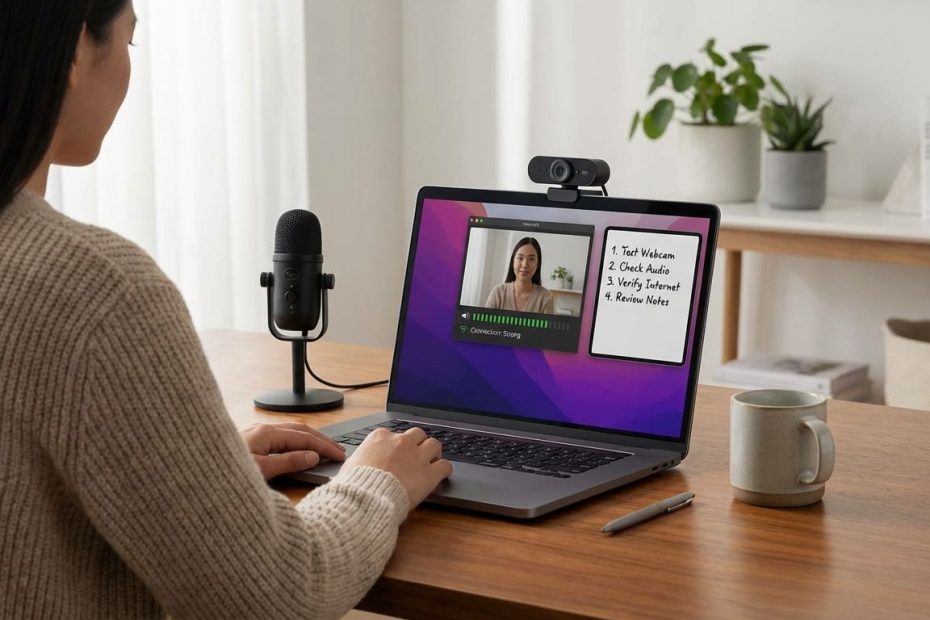
Acing online exams and presentations comes down to control: control your tech before it controls you, control your environment so it stays interruption-free, and control your pacing so the clock never surprises you.
This guide gives you eight field-tested tips that map to what students actually search for when stakes are high: LockDown Browser failures, room setup rules, device compatibility, proctoring flags, time pressure, awkward delivery, and live tech glitches. Use these sections as a checklist you can repeat for every exam week and every presentation day.
Tip 1: How Do You Prepare Your Laptop And Internet So Your Online Exam Doesn’t Crash?
You earn easy points before the exam even starts by running a full tech rehearsal on the same device, network, and room you will use on test day. Install required software early, reboot the machine, and verify the proctoring tool completes its start-up checks without delays. When a system only fails once a semester, it tends to fail during a final, so the goal is removing “first time” from anything that matters.
LockDown Browser-style tools often block background apps, shortcuts, and sometimes even common utilities. Close everything that is not allowed, disable notifications at the operating-system level, and keep only the permitted materials open. Build a simple boot sequence you repeat every time: restart, plug into power, confirm internet stability, then open the exam tool and sign in.
Internet stability is rarely about raw speed; it is about consistency. If possible, use wired Ethernet for fewer dropouts and less latency, and test in the exact location where you will sit. If Wi‑Fi is the only option, test for weak-signal spots, stop streaming on other devices in the home during the exam window, and keep a backup plan ready that stays inside policy, like switching to a known-stable network if the instructor allows it.
When a failure still happens mid-exam, act like an incident responder, not a panicked user. Capture proof fast, a screenshot or photo of the error, note the timestamp, and contact the instructor or proctor path immediately. If the tool offers in-app support, use it during the session, since many support teams prioritize active exam issues over email later.
Tip 2: What Should Your Room Setup Look Like For Proctored Exams (Respondus, Honorlock, Similar Tools)?
Set the room as if a strict observer will review the recording later, since that is often how disputes get settled. Clear the desk to the minimum allowed items, remove extra screens and devices, and keep your phone and smartwatch out of reach. The clean setup is not about aesthetics, it is about reducing triggers that generate flags or force reviews.
Lighting matters more than most students expect. Light the face from the front and avoid sitting with a bright window behind you, since backlighting can make the video look like a silhouette and trigger face-visibility problems. Camera angle matters too; set the webcam at eye level so the face stays centered and in frame when reading and typing.
Interruptions create the fastest route to stress and proctoring review. Choose a room with a door, put a visible sign outside, silence notifications on every device, and tell others in the home the exact time window when interruptions are not acceptable. If the exam rules require a room scan or ID check, keep ID ready and make the scan slowly, so it does not look rushed or incomplete.
Noise and echo can also cause trouble, especially when a system records audio and the mic picks up unclear speech. Use a quiet room, avoid fans pointed at the mic, and keep the computer on a stable surface. If permitted and compatible, a simple wired headset can reduce echo and improve the recorded audio signal.
Tip 3: What If LockDown Browser Or Respondus Says Your Device Isn’t Supported (Chromebook, Phone, Tablet)?
Device compatibility is a deadline problem, not a test-day problem. Many campus environments require a Windows or Mac computer for proctored exams, and some explicitly state that Chromebooks, smartphones, and Android tablets will not work. Lock this down early, since waiting until exam week turns a solvable logistics issue into a crisis.
Confirm the requirement in the course instructions and the university support page, then validate the exact device that will be used. If an external webcam is required, test it with the proctoring tool, not only with a generic camera app. If the exam requires camera and microphone access permissions, set those permissions days in advance so the tool does not block you at launch.
Downloads matter more than students think. Some LockDown Browser deployments use institution-specific download links, and using the wrong link can cause setup problems or login failures. Get the download link from the course or school portal, install early, then launch the tool and confirm the login path works end-to-end.
If the right device is not available, the professional move is early escalation. Contact the instructor and the campus help desk before the exam window, ask about approved alternatives, and reserve a campus lab or testing location if available. The goal is walking into exam day with a known-good setup, not hoping the tool cooperates under pressure.
Tip 4: How Do You Avoid Getting Flagged During Online Proctoring?
Proctoring flags happen most often when behavior looks inconsistent with normal test-taking or when the environment violates the rules. Keep the eyes mostly on the screen, avoid repeated off-screen glances, and keep hands visible when possible. If permitted scratch paper is allowed, use it deliberately and avoid frantic movements that look suspicious on camera.
Do not improvise with devices or software during an exam. Extra monitors, screen-sharing tools, clipboard managers, overlays, messaging apps, and notification pop-ups can create audit trails or visual flags. Treat the test session as a locked environment: one screen, one tool, only the allowed resources, and no background processes that might steal focus or trigger the exam window to minimize.
Unexpected events happen, door knocks, noise, pets, internet stutters. Handle them with steady, minimal disruption, and follow instructor guidance on whether to verbally acknowledge interruptions. A calm response often reads as credible during review, while frantic movements, leaving the chair, or repeatedly turning away tends to trigger escalation.
Stay away from “bypass” claims and sketchy services circulating online. They create academic risk and often create technical risk too, malware, lockouts, and account compromise show up in real cases. High performance comes from preparation, pacing, and tool fluency, not from gambles that damage credibility.
Tip 5: How Can You Manage Time Pressure And Test Anxiety In Online Exams?
Time pressure improves when the exam becomes a process you can execute, not a one-time event you fear. Start by scanning the exam structure quickly: number of questions, points per section, and time limit. Convert that into a pacing plan you can follow, minutes per section or checkpoints every set number of questions, and write it down on approved scratch paper if allowed.
Use a two-pass method to stabilize momentum. Move through the exam and answer the questions that are clear, mark the time-consuming ones, then return with the remaining time. This prevents early “time sinks” from stealing points that were available with less effort.
Anxiety spikes when friction appears, pop-ups, lag, unclear rules, or messy workspace. Remove friction ahead of time: water nearby, power plugged in, bathroom handled, allowed materials laid out, and the desk cleared. Control the testing environment so the brain stays on problem-solving, not on troubleshooting.
If the instructor offers a practice quiz in the same proctoring setup, treat it as mandatory preparation. The first experience with webcam checks, ID prompts, or room scans should never be during a high-stakes exam. Familiarity reduces panic and keeps the first five minutes clean and efficient.
Tip 6: How Do You Give A Great Online Presentation On Zoom Or Teams Without Sounding Awkward?
Online presentation quality starts with presence, and presence starts with camera placement and audio clarity. Put the camera at eye level, frame the head and shoulders, and light the face from the front so the audience reads expressions easily. A clean background prevents the audience from scanning the room instead of listening to the message.
Audio drives credibility more than most presenters expect. Use a stable microphone setup, a headset or a wired earbud mic often beats a laptop mic in echo control and clarity. Present from a space with soft furnishings when possible, since bare walls create reverb that makes confident delivery sound distant.
Delivery becomes smoother when the first 30 seconds are structured. Open with name, topic, and the agenda in one breath, then move into the first point without stalling. Keep sentence length varied, pause at transitions, and keep the pace slightly slower than in-person delivery so remote listeners can track.
Slides are support, not a script. Use large, readable fonts, high contrast, and limited text so the audience reads quickly and returns attention to the speaker. If the content requires detail, share a handout or reference file separately so the live talk stays clean and paced.
Tip 7: What’s The Best Way To Rehearse And Handle Tech Glitches During An Online Presentation?
Rehearsal needs to match the real delivery environment. Run one complete end-to-end rehearsal using the same device, internet connection, meeting platform, and screen-sharing method that will be used live. Test slide advances, video playback, audio levels, and any live demos, since these are the places where “it worked yesterday” often turns into a stall on presentation day.
Build a fallback kit that keeps the talk moving when screensharing fails. Keep the deck locally, export a PDF backup, and keep a one-page outline with section headers and target timestamps. If the platform glitches, switch to the PDF or continue from the outline while reestablishing share, keeping the audience focused on the message.
Media files are a common failure point. Large embedded videos can stutter, and audio routing can fail when switching between share modes. Compress media in advance when possible, set videos to play on click, and rehearse the exact steps for starting and stopping media so there is no fumbling in front of the group.
Operational discipline also prevents glitches. Close unnecessary applications, disable notifications, and keep the device plugged in. Wired internet is more reliable than Wi‑Fi for live sessions, and a quick connection test before joining reduces surprises during screen share and video.
Tip 8: How Do You Build A Repeatable Pre-Exam And Pre-Presentation Checklist That Raises Scores Fast?
Performance improves when execution becomes repeatable. Build one checklist for exams and one for presentations, then run them every time without negotiating with the process. Checklists stop preventable mistakes, wrong device, low battery, weak lighting, blocked permissions, late logins, and they keep attention on the task that earns points.
For online exams, the checklist should cover device readiness, software readiness, environment readiness, and proof readiness. Device readiness means power, updates done, and a restart. Software readiness means the correct institution download, permissions granted, and system checks completed. Environment readiness means cleared desk, stable lighting, and interruption control. Proof readiness means knowing how to capture an error screen quickly if something fails.
For presentations, the checklist should cover audio, camera, content, and backup. Audio means tested mic, muted notifications, and a quiet room. Camera means eye-level framing, front lighting, and a clean background. Content means readable slides and a timed outline. Backup means PDF export, local file access, and links saved in a text file so nothing gets hunted mid-call.
Score gains show up when the checklist is paired with a short review loop. After each exam or presentation, note what caused friction, then update the checklist. Within a month, the workflow becomes smooth enough that performance reflects skill and preparation, not tech surprises or avoidable delays.
How Do You Prevent LockDown Browser Problems During An Online Exam?
- Install from the school link
- Restart, plug in power
- Run webcam/system check
- Use a quiet, well-lit room
- Close apps, disable notifications
Lock In Your Process And Let Your Results Follow
Online exams reward students who treat tech and environment as part of preparation, not as an afterthought. Online presentations reward speakers who prioritize audio clarity, camera placement, and clean slide design, then rehearse with the full setup. Use the seven real-user question areas to remove failure points, then use the final checklist tip to make performance repeatable across every class. When the exam starts or the meeting goes live, the goal is staying in execution mode, calm, paced, and focused on scoring points. Build the routine once, run it every time, and let consistency do the heavy lifting.
References
- University of Nevada, Reno: Preparing to Take a Respondus Quiz
- Respondus: Using LockDown Browser with a Webcam (Student Experience)
- Respondus: Student Help Live Chat
- Marquette University: Taking Quizzes and Exams Online
- Microsoft Support: Tips for Presenting in Large Meetings and Events in Teams
- Microsoft Support: Tips for Producing Large Meetings and Events in Teams
- Reddit: “Respondus Lockdown Browser did not work during a final exam and Im scared I will fail!”.

Olivier Gillier is a global investment strategist and co-founder of RioBlanco Capital LLC, with over 20 years of experience in wealth management and international markets. A former Senior Vice President at Merrill Lynch, he now focuses on private equity, cross-border finance, and philanthropic initiatives worldwide.